OwlCloudHost Blog
  • Home
Security & Privacy

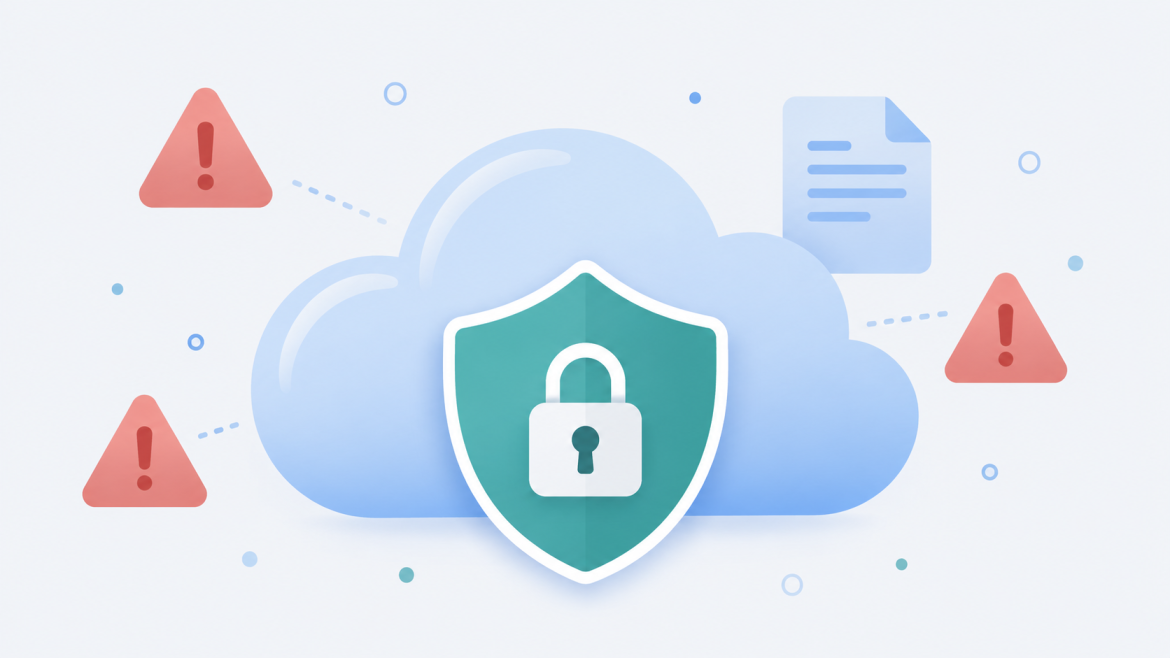
5 Cloud Storage Mistakes That Are Quietly Putting Your Files at Risk

by owladmin July 20, 2026
written by owladmin

Most people set up their cloud storage once and never think about it again. That’s exactly the problem. A few small habits, the kind that feel harmless in the moment, are the reason files go missing, get exposed, or become impossible to recover when something goes wrong. Here are the five most common ones, and how to fix each one in a few minutes.

1. Using the same password everywhere

If your cloud storage password is the same one you use for your email, your streaming account, and that forum you signed up for in 2019, one breach anywhere in that chain puts your files at risk. Password reuse is still the single biggest reason accounts get compromised, because attackers don’t need to guess your password, they just try the ones already leaked from some other site.

Fix it: Use a unique password for your cloud storage account, ideally generated and stored in a password manager. If your provider offers two-factor authentication, turn it on. It takes thirty seconds to set up and blocks almost every automated account takeover attempt.

2. Treating “shared” the same as “backed up”

Sharing a folder with someone is not the same as backing it up. If you only have one copy of a file sitting in a shared folder, and that folder gets deleted, edited, or corrupted by whoever it’s shared with, that file is gone. A lot of people find this out the hard way after a group project or a family photo album disappears.

Fix it: Keep an owned, private copy of anything irreplaceable, separate from shared folders. Sharing is for collaboration. A dedicated backup is for protection. They solve different problems.

3. Never checking who still has access

Old share links and account permissions tend to pile up quietly. That contractor from two years ago, the ex-roommate, the client whose project ended last spring, they may still have access to files and folders they no longer need to see. Most people never think to check, because nothing looks wrong on the surface.

Fix it: Once every few months, take five minutes to look through your active shares and shared links. Revoke anything you don’t recognize or no longer need to keep open. If your provider supports expiring links, use them by default instead of permanent ones.

4. Ignoring file versioning until it’s too late

Overwriting a file feels efficient right up until you overwrite the wrong version, or a bad edit gets saved on top of the good one. Without version history, that mistake is permanent. This is one of the most common ways people lose work they assumed was safe simply because it was “in the cloud.”

Fix it: Check whether your storage provider keeps previous versions of a file when it’s updated, and how far back that history goes. If it does, you have a safety net. If it doesn’t, save major drafts as separate files before making big changes, rather than trusting a single copy to survive every edit.

5. Storing sensitive files without any extra protection

Not every file needs the same level of protection, but some absolutely do. IDs, tax documents, financial records, and anything with someone else’s personal information shouldn’t sit in a folder with the same access as your vacation photos.

Fix it: Use password protection on sensitive share links, set expiration dates so access closes automatically, and keep truly sensitive documents in their own clearly labeled folder rather than mixed in with everything else. If a link ever ends up in the wrong hands, a password and an expiration date are the difference between a minor scare and a real problem.

None of this requires starting over

The good news is that fixing all five of these takes less time than it took to read this article. A stronger password, a private backup copy, a quick access review, checking your version history, and locking down sensitive shares, that’s it. None of it means switching providers or rebuilding your folder structure from scratch.

If you’re looking for cloud storage that makes secure sharing simple from the start, password-protected links and expiring shares come standard on every OwlCloudHost plan, including the free one. Get started at owlcloudhost.com.

July 20, 2026 0 comments
1 FacebookTwitterPinterestEmail
Security & Privacy

Who Can Actually See Your Files in the Cloud? A Plain-English Breakdown

by owladmin July 17, 2026
written by owladmin

You upload a file to the cloud and it disappears into an interface somewhere. No folder icon, no visible drive, just a progress bar and then it’s done. For most people, that’s also where the thinking stops. The file is “up there” now, and that’s enough to not think about it again.

But if you’ve ever paused before uploading something sensitive, a tax document, a medical record, a photo you’d rather keep private, you’ve probably wondered who can actually get to it. The honest answer is more nuanced than “nobody” or “everybody.” Here’s what’s actually true.

Your Cloud Provider Can Technically Access Most Files

Unless a service specifically advertises end to end encryption, the company storing your files has the technical ability to look at them. This isn’t a conspiracy, it’s just how most storage systems work. Files are typically encrypted in transit (while uploading) and at rest (sitting on a server), but the provider usually holds the encryption keys, which means their systems can decrypt and read the data if needed.

That doesn’t mean employees are casually browsing your vacation photos. Reputable companies have strict internal policies limiting who can access user data and under what circumstances, usually only for things like responding to legal requests, investigating abuse reports, or fixing a technical issue you’ve asked for help with. But “technically possible” and “actively happening” are different things, and it’s worth knowing the difference.

End to End Encryption Changes the Equation

Some services offer true end to end encryption, where files are encrypted on your device before they ever reach the server, and only you hold the key to decrypt them. In this setup, even the storage provider can’t read your files even if they wanted to, because they never had the key in the first place.

This sounds like the obvious best option, and for certain files it is. But it comes with tradeoffs. If you lose your password or encryption key, there’s often no way to recover your files, not even the company can help you. It can also limit features like previewing files in a browser, searching file contents, or easily sharing with people who don’t use the same service.

Sharing Is Where Most Privacy Slips Actually Happen

Here’s the part people underestimate. The biggest privacy risk with cloud storage usually isn’t the provider, it’s how files get shared. A link with no password and no expiration date can end up forwarded, posted somewhere public, or sitting in an old email thread for years after you meant for anyone to see it.

Before sharing anything sensitive, ask a few quick questions. Does this link need a password? Should it expire after a set time or number of views? Am I sharing the whole folder when the other person only needed one file? Small habits here matter far more than which company’s logo is on the storage app.

Legal Requests Are a Real, If Rare, Factor

Cloud providers can be legally compelled to hand over user data through subpoenas, court orders, or government requests, depending on the jurisdiction and the nature of the investigation. This applies to nearly every mainstream storage provider, not just one or two.

Most reputable companies publish transparency reports showing how many requests they receive and how they respond, and many will notify users when legally allowed to do so. If this is a major concern for you, look for a provider with a clear, publicly available policy on how they handle these requests, rather than assuming it never happens.

What You Can Actually Control

Even without switching to a specialized encrypted service, there’s a lot within your control:

Use strong, unique passwords and enable two factor authentication. This single habit blocks the vast majority of real world account breaches, which are far more common than any provider snooping through your files.

Review your sharing settings regularly. Old shared links have a way of piling up. A quick audit every few months, checking what’s still shared and with whom, closes doors you forgot were open.

Separate your most sensitive files. Not everything needs the same level of caution, but for the handful of documents that would genuinely hurt you if exposed, consider extra protection like a password protected folder or a dedicated encrypted tool.

Read the privacy policy, or at least skim it. You don’t need a law degree. Look specifically for what data is collected, whether it’s sold or shared with third parties, and how long it’s retained after you delete something.

The Realistic Bottom Line

For the vast majority of everyday files, family photos, work documents, school projects, the actual risk isn’t some employee reading your files for fun. It’s weak passwords, careless sharing links, and reused credentials from other breaches. Cloud storage, used with reasonable habits, is genuinely safer than a laptop that could be lost, stolen, or fried by a coffee spill.

Privacy in the cloud isn’t about finding a provider that promises nobody could ever access your data under any circumstance. It’s about understanding what protections you actually have, using the ones available to you, and being deliberate about what you share and with whom.

If privacy and simple, transparent controls matter to you, OwlCloudHost gives every account, including the free 1GB plan, password protected sharing links and expiration dates, so you decide exactly who sees a file and for how long. Paid plans start at $1.99 per month for more storage as your needs grow.

July 17, 2026 0 comments
0 FacebookTwitterPinterestEmail
Guides & Tutorials

The Hidden Cost of “Free” Cloud Storage (And When It’s Actually Time to Upgrade)

by owladmin July 16, 2026
written by owladmin

Free cloud storage feels like a great deal, right up until it doesn’t. You sign up, get a few gigabytes for nothing, and forget the account even has a limit. Then one day you go to upload something important and get hit with the dreaded “storage full” message at the worst possible moment.

Free tiers aren’t a scam. They genuinely help people get started. But they come with tradeoffs that rarely get mentioned on the pricing page. Here’s what “free” actually costs you, and how to know when it’s time to move on.

Your Time Is the First Thing You Spend

Most free plans cap out somewhere between 1GB and 15GB. That sounds like plenty until you start storing photos, videos, or work files. Once you hit the ceiling, you’re stuck doing cleanup: deleting old files, moving things to a different service, or juggling two or three accounts just to have enough room.

That juggling act has a cost, even if no money changes hands. Every few months you spend an hour sorting through folders trying to free up space is an hour you didn’t spend on something that actually mattered. Multiply that by a year and it adds up to a surprising amount of wasted time.

Fragmented Storage Creates Real Risk

A lot of people solve the space problem by spreading files across multiple free accounts. Photos in one place, documents in another, videos somewhere else entirely. It works, sort of, but it creates a new problem: nobody remembers where anything is.

Worse, it means your important files are scattered across several logins, several password resets, and several companies’ security practices instead of one. If one of those free accounts gets flagged, hacked, or simply shut down (which does happen), you may not even notice until you go looking for a file that isn’t there anymore.

Free Plans Are Built to Get You to Upgrade

This isn’t a criticism, it’s just how the business works. Free storage is a funnel. The experience is intentionally good enough to keep you around, but not quite good enough to handle everything you’ll eventually need. Slower upload speeds, smaller file size limits, fewer sharing controls, and ads or prompts nudging you toward a paid tier are all part of the design.

That’s a completely reasonable business model. The issue is that a lot of people stay on the free tier long after it stops making sense for how they actually use storage, simply because upgrading feels like an extra decision they haven’t gotten around to making.

Signs You’ve Outgrown Free Storage

A few clear signals that it’s time to consider a paid plan:

You’re deleting files just to make room. If you’re regularly removing things you’d actually like to keep, the plan is working against you instead of for you.

You’re sending large files a workaround at a time. Compressing videos, splitting up folders, or using sketchy third party transfer tools to get around a size limit usually means it’s time for more room and better sharing tools.

You’ve lost track of what’s where. If your files live across three or four different free accounts and you couldn’t say with confidence where any specific document actually is, consolidation will save you more stress than the free storage saves you money.

Sharing feels clunky. Free tiers often limit link expiration, password protection, or permission controls. If you’re emailing files as attachments because sharing a link is too much of a hassle, that’s a sign the tool isn’t keeping up with your needs.

What a Paid Plan Actually Buys You

Upgrading isn’t just about more gigabytes. Paid cloud storage plans typically include:

  • Faster upload and download speeds
  • Higher file size limits, useful for video and large project files
  • Password protected links and expiration dates for shared files
  • Fewer restrictions on sharing with people outside your organization
  • Better support when something goes wrong

For most individuals and small businesses, the jump from free to an entry level paid plan costs less than a couple of coffees a month, and it removes a recurring source of friction that free tiers are designed to create.

The Real Question to Ask

The right amount of storage isn’t about finding the biggest free plan you can stitch together. It’s about how much time and hassle you’re willing to trade for saving a few dollars a month. For a lot of people, once they actually add up the hours spent managing storage limits, paying a small monthly fee for a plan that just works turns out to be the cheaper option.

If you’re tired of juggling free accounts and want everything in one place, OwlCloudHost offers a free 1GB plan to get started, with paid tiers beginning at $1.99 per month for 20GB and more room to grow as your files do. No hidden catches, just straightforward cloud storage that scales with you.

July 16, 2026 0 comments
0 FacebookTwitterPinterestEmail
Guides & Tutorials

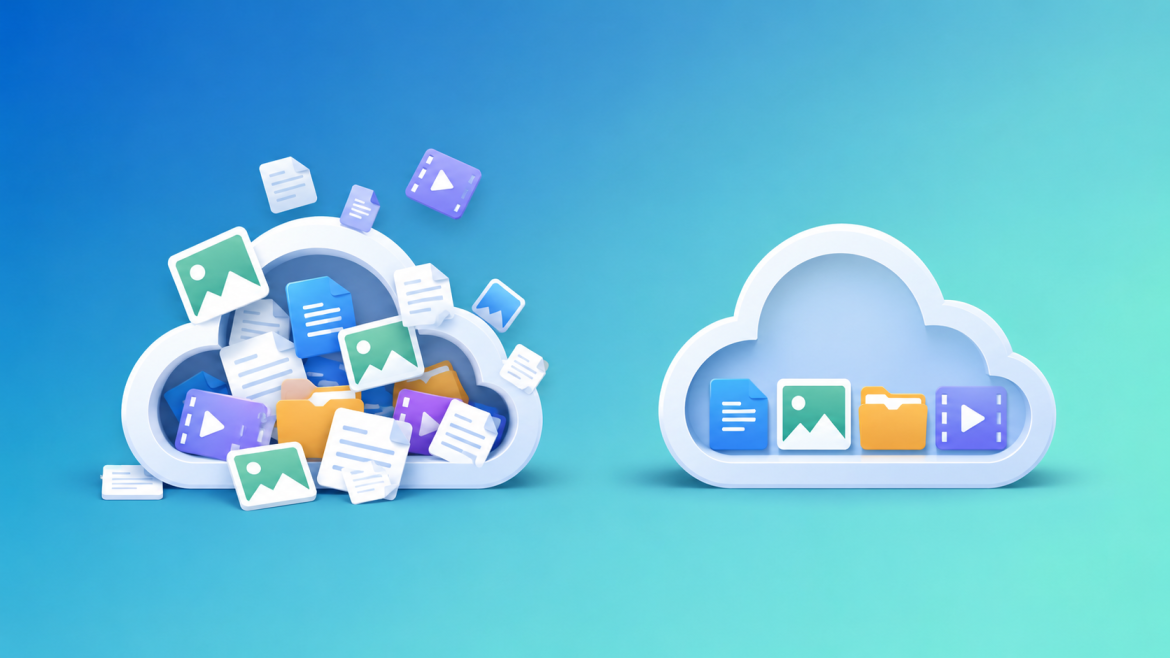
Why Content Creators Need More Than Just Phone Storage

by owladmin July 15, 2026
written by owladmin

You just finished filming. Three takes, decent lighting, the vibe was right. You go to save it and your phone throws up that little red bar: storage almost full. Now you’re deleting old photos you swore you’d back up eventually, just to make room for a video you haven’t even edited yet.

If you make content regularly, this isn’t a one time annoyance. It’s a recurring tax on your workflow, and most creators just accept it as part of the job.

Phone storage was never built for this

A single minute of 4K video can run several hundred megabytes depending on your settings. Multiply that by every take, every angle, every version you shoot before landing the one you actually post, and a phone’s storage disappears fast. Add photos, voice memos, screen recordings, and downloaded assets, and most creators are living permanently one full memory card away from a crisis.

The usual fix is deleting things. Old projects, raw footage from a shoot three months ago, B-roll you were sure you’d never need again until the exact week a client asks for it. Deleting your own archive to make room for new work is not a storage strategy, it’s just delaying the same problem until next week.

Raw footage is worth more than the final post

Here’s what a lot of creators only learn the hard way. The finished video you post is not the valuable part. The raw footage is. That’s what lets you re-edit for a different platform, pull a clip for a highlight reel six months later, or reuse b-roll when you’re short on time. Once raw footage gets deleted to free up space, none of that is possible again. You can’t reshoot a moment that already happened.

Treating raw footage as disposable because it’s “already posted” is one of the most common regrets creators run into once they’ve been doing this for a year or two.

Sharing with editors, brands, and collaborators

If you work with an editor, a brand, or a team, moving files gets complicated fast. Messaging apps compress video into something barely watchable. Email chokes on anything over a few dozen megabytes. Sending a raw 4K clip through a text message basically guarantees the person on the other end gets a blurry, artifact-heavy mess.

The fix is the same one professionals in any file heavy field use. Upload the original file once, share a link, and whoever needs it downloads the exact same quality you shot. No compression working against you in the background, no guessing what got lost in transit.

For brand deliverables specifically, this also just looks more professional. A clean shareable link with a password, instead of a shaky WeTransfer link that expires in a week, tells a brand you’ve done this before.

A simple system that actually holds up

You don’t need anything complicated. One folder per project or campaign, with everything related to it inside: raw clips, thumbnails, captions, final exports. When a brand asks for last month’s deliverables, you know exactly where they are instead of scrolling through a camera roll trying to remember what you named things.

Set expiration dates on links once a deliverable has been sent and confirmed. There’s no reason a brand’s download link should stay live indefinitely once the campaign is over.

Where OwlCloudHost fits in

This is exactly the gap OwlCloudHost is built to fill. Upload your raw footage at full quality, share password protected links with editors or brands, and keep your phone’s storage for what it’s actually for, shooting the next thing instead of hoarding the last ten.

Start with a free 1 GB account, no credit card required, with password protected sharing and expiring links included even on the free plan. Paid plans start at $1.99 per month when your library grows. owlcloudhost.com.

July 15, 2026 0 comments
0 FacebookTwitterPinterestEmail
Guides & Tutorials

Sync vs Backup: They’re Not the Same Thing (And Mixing Them Up Can Cost You)

by owladmin July 14, 2026
written by owladmin

Somebody deletes a file by accident, opens their cloud storage app expecting to find it safe and sound, and it’s gone there too. Not because the cloud failed them. Because they were using sync, not backup, and assumed the two were interchangeable.

They’re not, and the difference matters more than most people realize until the day it doesn’t.

Sync means “the same everywhere,” not “protected”

Sync tools, the kind built into most cloud storage services, watch a folder on your computer and mirror it online. Change something on your laptop, it changes in the cloud. Delete something on your phone, it disappears from your laptop too, usually within seconds.

That’s the whole point of sync. It keeps every device showing the identical, current version of your files. Great for working across a laptop, a phone, and a desktop without emailing files to yourself. Not so great the moment you realize “identical everywhere” cuts both ways. A mistake on one device becomes a mistake on every device, instantly, because that’s exactly what sync is designed to do.

Backup means “a copy from before,” on purpose

Backup works completely differently. Instead of mirroring your current state, a real backup keeps a separate copy, usually from a specific point in time, that doesn’t automatically update when your live files change.

Delete a file today, and a proper backup from last week still has it, because backups aren’t trying to match what you have right now. They’re trying to give you something to go back to. That’s the entire job.

This is why backup software usually talks about “snapshots” or “restore points.” It’s not showing you the current version of your files. It’s showing you what your files looked like at some earlier moment, before whatever went wrong happened.

Where this catches people off guard

A few situations come up constantly.

Someone accidentally deletes a folder, expecting their cloud storage to have a safety net. If that storage was only syncing, the deletion synced too, and the folder is gone from every connected device. No safety net, because sync was never built to be one.

Ransomware hits a computer and starts encrypting files. If those files were syncing to the cloud, the encrypted, useless versions get synced right along with everything else. The cloud copy is now just as broken as the local one, updated in real time to match the disaster.

Someone overwrites a document with a bad edit and doesn’t notice for two weeks. With sync alone, that mistake has already replaced the good version everywhere. With actual backup, an earlier snapshot from before the bad edit still exists somewhere, waiting to be restored.

None of these are edge cases. They’re just Tuesday for anyone who’s used computers long enough.

The version history loophole

Some cloud storage services blur the line a little by keeping version history alongside sync. You delete a file or make a bad edit, and the service quietly holds onto older versions for some window of time, often 30 days, sometimes longer depending on the plan.

This helps, genuinely. It’s the closest thing to backup that a pure sync service offers. But it’s worth checking the actual details before relying on it. How far back does the history go? Does it apply to deleted files or only edited ones? Is there a hard cutoff after which older versions vanish for good? A lot of people assume this protection exists and never actually confirm it, which is its own kind of risk.

So which one do you actually need

Realistically, both, doing different jobs.

Sync is what makes your files available everywhere you work. Open a document on your phone, keep editing on your laptop an hour later, no thinking required. That convenience is worth having.

Backup is what saves you when sync isn’t enough, when the mistake, the deletion, or the ransomware has already happened and you need something that didn’t get touched by it. A separate backup, ideally one that isn’t just mirroring your live files in real time, is what actually gets you out of that situation.

A simple way to check what you’ve got right now

Open whatever cloud storage service you’re using and look for something called version history, file recovery, or trash retention. Note how far back it goes. Then ask yourself honestly: if you deleted an entire folder right now, by accident, would you be able to get it back a month from now? If the answer is no or you’re not sure, that’s the gap to close.

For anything genuinely irreplaceable, tax records, family photos, client work, treat sync as the convenience layer and make sure there’s an actual backup underneath it, something with real version history or a separate archive that doesn’t just mirror whatever you’re doing in the moment.

Where OwlCloudHost fits into this

OwlCloudHost handles the sync side well, your files are available across devices through a private link instead of scattered across email threads and messaging apps. Beyond that, the habit that actually protects you is keeping a second copy of anything you couldn’t stand to lose, uploaded deliberately rather than mirrored automatically, so a bad day on one device never becomes a bad day everywhere at once.

Start with a free 1 GB account, no credit card required, with password protected sharing and expiring links included even on the free plan. Paid plans begin at $1.99 per month. owlcloudhost.com.

July 14, 2026 0 comments
0 FacebookTwitterPinterestEmail
Large File Transfer

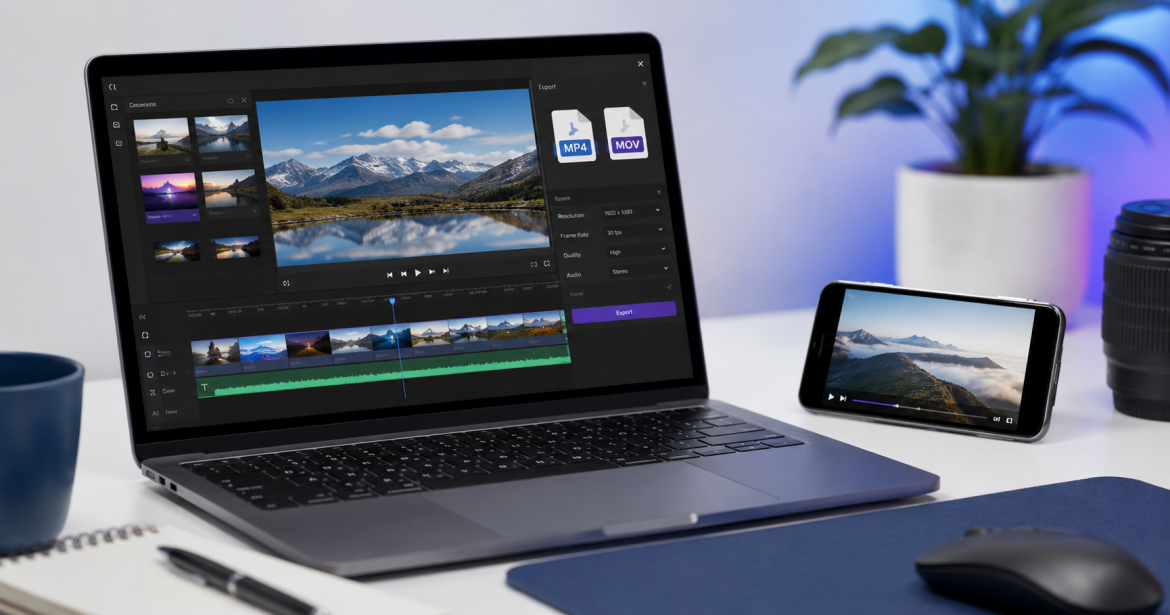
Video File Formats Explained: Which One to Use When Sharing

by owladmin July 13, 2026
written by owladmin

You finish exporting a video and there’s a dropdown full of letters staring back at you. MP4, MOV, MKV, AVI, WebM. Most people just click whatever the software picked by default and move on. Sometimes that works fine. Sometimes the person on the other end can’t open the file, or it opens but looks weirdly compressed, or it’s somehow three times bigger than it should be for a two-minute clip.

None of that is random. Each format does something a little different, and once you know what, picking the right one takes about five seconds.

Container vs codec (this trips up almost everyone)

Quick thing to get out of the way first. A video file is actually two separate things glued together: a container and a codec.

The container is what you see in the file name, .mp4 or .mov. It’s basically the box. The codec is what’s inside that box, the actual method used to squeeze the video down to a manageable size. Here’s the part that confuses people: two files can both say .mp4 and still behave totally differently, because the codec doing the compression underneath isn’t the same.

So when someone says “the video won’t open,” it’s usually not the container’s fault. It’s a codec their device doesn’t recognize, sitting inside a file extension that looks perfectly normal.

MP4: just use this one if you’re not sure

MP4 is the default answer for a reason. It opens on phones, laptops, smart TVs, basically anything with a screen, and it compresses well without wrecking quality. If you’re sending something to a client, uploading to a site, or sending to someone whose setup you have no idea about, MP4 is the one that just works.

MOV: what your Mac probably exported without asking

If you’re on a Mac or shooting on an iPhone, you’ve run into MOV constantly, whether you meant to or not. It’s Apple’s native format and it tends to hold onto quality a little better than a standard MP4, which is part of why editors like working with it mid-project.

The downside shows up the moment it leaves Apple’s ecosystem. Some Windows machines handle MOV fine, others choke on it depending on which codec got used inside. If you’re sending a final file to someone outside Apple’s world, convert it to MP4 first and save everyone the guessing.

MKV: powerful, but don’t send this to a client

MKV can hold almost anything, multiple audio tracks, subtitles, very high bitrate video, all crammed into one file. People who care about squeezing out every bit of quality for an archive tend to gravitate toward it.

For sending something to another person, it usually causes more headaches than it solves. A lot of phones and basic media players won’t touch it without extra software installed. Keep it for your own archives, not for delivering work.

AVI: the format that refuses to die

AVI has been around since Windows 3.1, somehow. It still shows up sometimes, but it compresses badly compared to anything modern, so you end up with a much bigger file for the same quality. There’s not really a reason to export new video as AVI anymore. If someone hands you an old AVI file, converting it to MP4 will usually shrink it without any visible quality loss.

WebM: for websites, not for sending files

WebM was built for browsers specifically, fast loading, efficient compression for streaming. Unless you’re a developer embedding video directly into a page, there’s not much reason to pick this over MP4 for regular file sharing.

If you’re still not sure

MP4 covers almost every situation. Only reach for something else when you have an actual reason to: MOV if you’re staying inside an all-Apple workflow, MKV for a personal archive, WebM if you’re literally building a website.

Compression settings usually matter more than the format anyway

Here’s the thing that catches people off guard. Two MP4 files can look completely different depending on how they were exported, even with the exact same format. A badly compressed MP4 can genuinely look worse than a well-compressed MOV.

A couple things worth double-checking before you hit export. Match your resolution to your source footage, exporting a 1080p timeline at 4K doesn’t add any real detail, it just bloats the file. And don’t compress something twice. If a video’s already been through one round of compression, running it through another for a different platform stacks quality loss on top of quality loss. Work from the original whenever you still have it.

Honestly, most of this problem goes away with the right delivery method

Here’s the part people don’t think about. A lot of the format headache exists because we’re trying to push video through channels that were never built for it in the first place, messaging apps that silently recompress everything, email attachments capped at 25 MB.

Upload the video to cloud storage instead and the file that arrives is the file you sent. Whatever container and codec you exported stays exactly as-is, nothing gets converted or squeezed down behind your back.

OwlCloudHost works this way. Upload once, share a link, and the person downloads the original, byte for byte, no matter which format you picked. Free plan starts at 1 GB, no card required, with passwords and expiring links included even on that free tier. Paid plans start at $1.99/month if you need more room. owlcloudhost.com.

July 13, 2026 0 comments
0 FacebookTwitterPinterestEmail
Large File Transfer

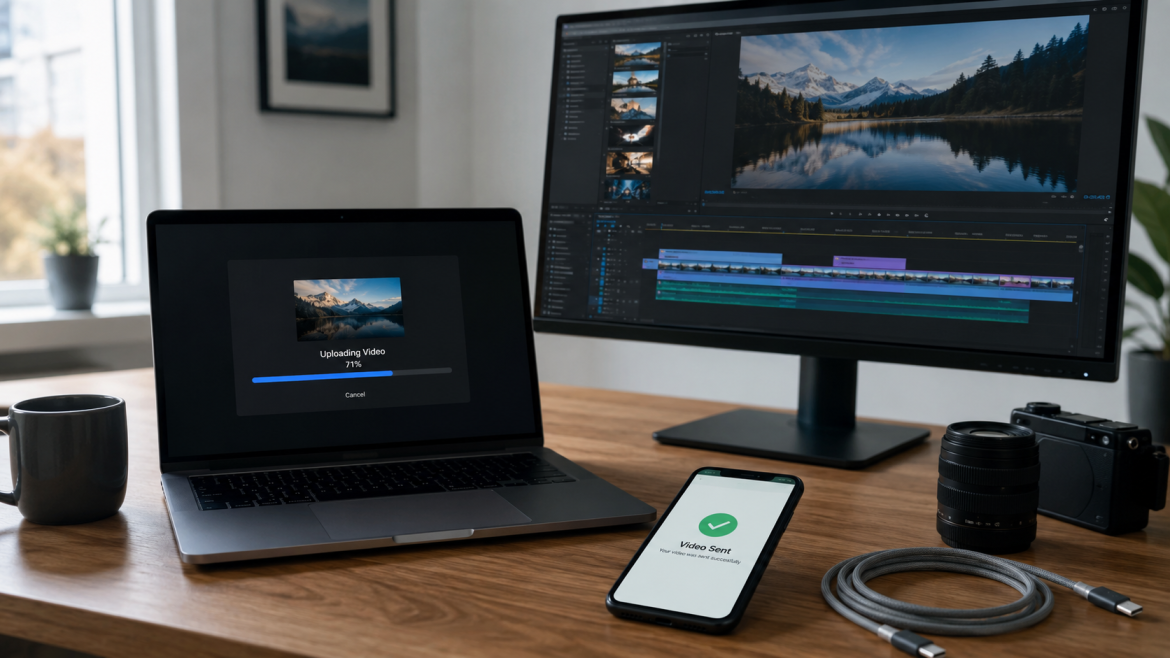
How to Send Large Video Files Without Losing Quality

by owladmin July 3, 2026
written by owladmin

If you have ever tried to send a video through email, text message, or a messaging app, you already know the frustration. The file either bounces back with an error, takes forever to upload, or arrives on the other end looking noticeably worse than what you started with. Video is one of the trickiest types of files to share because of its size, and most of the tools people reach for first were never built to handle it well.

Why videos lose quality when you send them

Most messaging apps and social platforms automatically compress video files before sending them. WhatsApp, Instagram, and even text messaging on phones will shrink a video’s resolution and bitrate to save bandwidth and storage space on their servers. This happens automatically, and there is usually no setting to turn it off. So even if you record a video in stunning 4K, the version your friend or client receives might look blurry, pixelated, or full of compression artifacts.

Email has a different problem. Most providers cap attachments somewhere between 20 and 25 MB, which is nowhere near enough for even a short clip in decent resolution. A three-minute video shot on a modern phone can easily be several hundred megabytes, making email a non-starter for anything beyond a few seconds of footage.

What actually preserves video quality

The only reliable way to send a video without losing quality is to avoid platforms that compress or resize files during transfer. This usually means using a cloud storage or file hosting service instead of a messaging app or email attachment.

When you upload a video to a cloud storage platform, the file is stored and shared exactly as it was recorded, byte for byte. Instead of sending the video itself, you send a link. Whoever opens that link can view or download the original file without any of the compression that ruins quality on other platforms.

This approach also solves the size problem. Cloud storage platforms are built to handle files far larger than what email or messaging apps allow, so a two-hour wedding video or a raw, unedited project file is no more difficult to share than a short clip.

A few tips for keeping large video transfers smooth

Upload during off-peak hours if your internet connection is shared with other devices at home or in the office. Uploads compete for the same bandwidth as everything else, and a slower connection can make a large file take much longer than expected.

Check your export settings before uploading. If you are exporting from editing software, make sure you are not accidentally exporting at a lower resolution or bitrate than your original footage. This is a common mistake that has nothing to do with how the file is sent afterward.

Use a wired connection when possible. Wi-Fi is convenient, but a wired ethernet connection is more stable for large uploads, especially if the file is several gigabytes.

Confirm the recipient’s access before sending. If you are sharing with a client or collaborator, make sure the link permissions are set correctly so they can view or download without running into an access error.

Where OwlCloudHost fits in

This is exactly the kind of problem cloud file hosting was built to solve. With OwlCloudHost, you upload your video once, at full quality, and share a private link instead of the file itself. There is no automatic compression working against you in the background, and no arbitrary size cap forcing you to split a project into pieces just to send it.

Whether you are a videographer delivering final footage to a client, a business sharing training videos with a remote team, or just someone who wants to send a birthday video to family without it looking like it was recorded underwater, having a reliable place to upload and share large files makes the whole process painless.

If you deal with large video files regularly, it might be worth setting up a dedicated folder for client deliverables or project exports, so everything stays organized and ready to share the moment it is finished.

July 3, 2026 0 comments
0 FacebookTwitterPinterestEmail
News & Updates

Cloud Storage vs External Hard Drive: Which One Do You Actually Need?

by owladmin June 20, 2026
written by owladmin

At some point almost everyone hits the same wall. Your laptop is full, your phone keeps warning you about storage, and you know you should be backing things up but you are not totally sure how. Two options come up again and again: cloud storage and an external hard drive. People tend to treat it like a choice between one or the other, as if picking a side settles the question forever.

The honest answer is that they do different jobs, and the right pick depends on what you actually need them for. Let us break down how each one works, where each one shines, and where each one will let you down, so you can decide without the marketing noise.

What an external hard drive is really good at

An external hard drive is a physical box you plug into your computer, usually over USB. You drag your files onto it and they sit there on a spinning disk or a solid state chip inside the case. Simple, direct, and yours.

The biggest thing an external drive has going for it is cost per gigabyte. You pay once and you own a lot of space. An 8 terabyte desktop drive can hold an enormous amount of photos, video, and project files for a price that would cover only a year or two of a cloud plan at the same size. If you work with huge files all day, like raw video or high resolution photography, that math matters.

Speed is another point in its favor. When the drive is plugged straight into your machine, moving files is fast and does not depend on your internet at all. No upload bar crawling along, no waiting for a sync to finish. You copy a folder and it is done in the time it takes the cable to do its work.

There is also something to be said for control. The drive is in your hands. Nobody else can reach it, there is no monthly bill, and no company policy decides what happens to your files. For people who like knowing exactly where their data lives, that is worth a lot.

Where an external hard drive lets you down

Here is the problem nobody likes to think about. A hard drive is a physical object, and physical objects fail. Drives die, sometimes with no warning at all. One day it works, the next day it makes a clicking sound and your files are gone. There is no backup of the backup unless you made one yourself.

It can also be lost, stolen, or damaged. A drive that holds ten years of memories is also a drive that can be left in a bag on a train or ruined when a glass of water tips over. Because everything is in one place, losing that one place means losing everything on it.

Then there is access. An external drive only helps you when you are physically near it and have it plugged in. You cannot pull up a file from your phone at a coffee shop if the drive is sitting in a drawer at home. For anyone who moves between devices or works away from their desk, that is a real limit.

What cloud storage is really good at

Cloud storage flips the model. Instead of keeping your files on a box you own, you upload them to servers that you reach over the internet. Your files live online, and you get to them by signing in from any device.

The headline benefit is access from anywhere. Phone, laptop, a borrowed computer at the library, it does not matter. If you can sign in, your files are there. You finish something on your laptop and open it on your phone an hour later without moving anything by hand. For people who bounce between devices, this alone is the reason they switch.

The second benefit is protection from disaster. When your files live in the cloud, a dead laptop or a stolen phone is an annoyance, not a catastrophe. The files are not on the broken device, they are online, waiting for you to sign in from something else. Good services also keep your data across multiple machines on their end, so a single failure does not wipe out your stuff.

Sharing is the third big one. Sending a large file or a whole folder to someone is as easy as creating a link. No bouncing email attachments, no carrying a drive across town. You can hand someone access in seconds and, on a service that does it well, set a password or an expiration date so the access closes when the job is done.

Where cloud storage lets you down

Cloud storage leans on your internet connection. Uploading a very large library the first time can take a while, and if your connection is slow or unstable, big transfers test your patience. Once your files are up there the day to day feels smooth, but that first upload is the part people underestimate.

Cost works differently too. Instead of paying once, you usually pay a small amount every month for the space you use. For modest needs this is cheap, often cheaper than people expect, but if you need a massive amount of room the monthly model can add up over many years compared to buying a drive outright.

And you are trusting a company with your files, so the company you pick matters. A good provider is clear about encryption, about who can see your data, and about what happens if you stop paying. A sloppy one is not. This is the part worth doing a little homework on before you commit anything important.

So which one do you actually need?

Here is the part most articles dodge. For most people, the real answer is not one or the other. It is both, used for different jobs.

Think of an external hard drive as good for bulk storage at home. Huge video projects, a giant photo archive, the stuff that is too big or too expensive to keep entirely online. It is fast, it is cheap per gigabyte, and it sits right there when you need to move a lot of data quickly.

Think of cloud storage as your safety net and your access layer. The files you would be heartbroken to lose, the documents you need from anywhere, the things you share with other people. Those belong in the cloud, because the cloud survives the spilled coffee and the dead drive and the lost bag.

The old rule that backup pros live by fits here. Keep important files in more than one place, and do not let all of those places be things that can break at the same time. A drive on your desk and a copy in the cloud cannot both die from one accident. That is the whole point.

If you are going to pick only one to start with, think about your biggest fear. If your nightmare is losing irreplaceable files to a dead device or a theft, start with the cloud, because it protects you no matter what happens to your hardware. If your nightmare is running out of room for enormous files and you rarely need them away from your desk, an external drive solves that cheaply today.

A simple setup that works for almost everyone

You do not need a complicated system. Here is one that covers most people well.

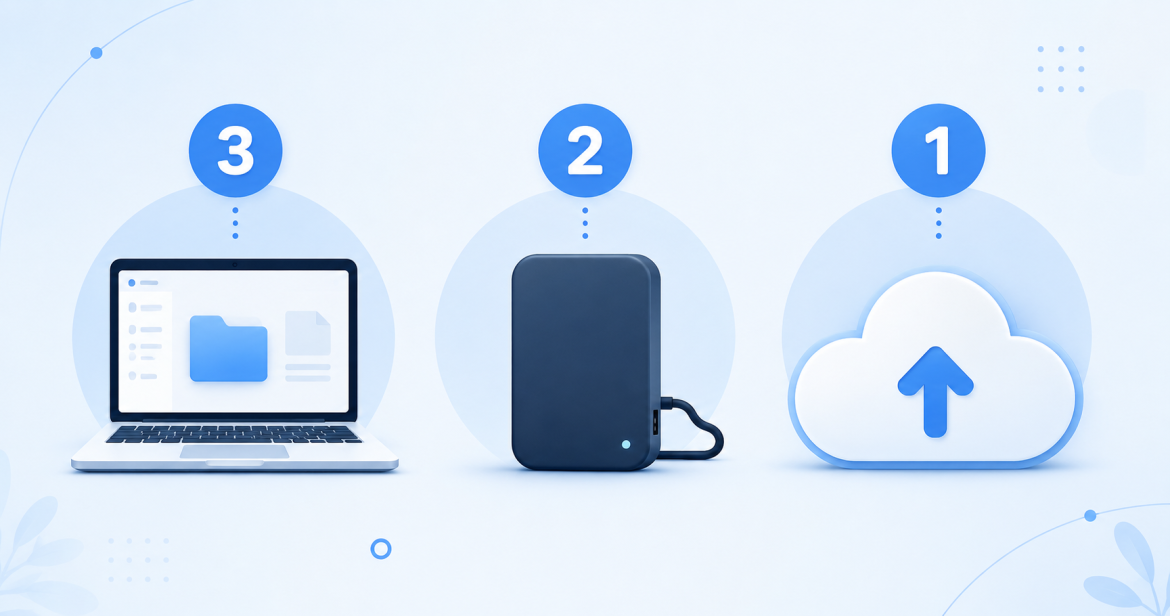
Keep the files you use often on your computer where they are fast to reach. Put the big stuff you rarely touch on an external drive to keep your machine clean. And keep a copy of anything truly important in the cloud, so a hardware failure can never take it from you. Three layers, each doing the job it is best at.

Set it up once and the maintenance is tiny. Every couple of months, move the new big files to your drive and make sure your important folders are still safely backed up online. Fifteen minutes now and then buys you the peace of mind of knowing nothing is sitting in only one fragile place.

The bottom line

External hard drives and cloud storage are not rivals. They are tools with different strengths. A drive gives you cheap, fast, local space that you own outright. The cloud gives you access from anywhere and protection that survives whatever happens to your devices. Used together, they cover each other’s weak spots, and that combination is stronger than either one alone.

If you do not have the cloud half of that setup yet, OwlCloudHost is an easy place to start. You get a free 1 GB account with no credit card, password protected sharing and expiring links on every plan including the free one, and paid plans that begin at $1.99 per month when you need more room. Whatever you keep on your hard drive, keep a copy of the important things somewhere a spilled drink can never reach. Get started at owlcloudhost.com.

June 20, 2026 0 comments
0 FacebookTwitterPinterestEmail
Student using cloud storage to keep assignments synced
Guides & Tutorials

Cloud Storage for Students: Keep Every Assignment Safe and Synced

by owladmin June 18, 2026
written by owladmin

Picture this. It is 11:48 at night, your essay is due at midnight, and your laptop suddenly freezes. You restart it, heart pounding, only to find that the last two hours of work are gone. If you have ever lived through a moment like that, you already understand why cloud storage is one of the smartest tools a student can have.

School today runs on files. Essays, lab reports, slide decks, group projects, scanned notes, recorded lectures, and that one PDF the professor swears was in the syllabus. Keeping all of it safe, organized, and available from any device is no longer a nice extra. It is the difference between a calm submission and a late-night disaster. Let us walk through how cloud storage works for students and how to set yourself up so you never lose an assignment again.

Why Students Need Cloud Storage More Than Anyone

Students move between devices constantly. You might start an essay on a library computer, edit it on your phone during the bus ride home, and finish it on your laptop at midnight. Without cloud storage, that means emailing files to yourself, carrying a USB drive, or hoping the right version is on the right device. Every one of those methods invites mistakes.

Cloud storage solves this by keeping a single, always-updated copy of your work online. You save once, and the latest version follows you everywhere. There is no guessing which file is newest and no scrambling to find the document you swore you saved.

There is also the simple matter of protecting your work. Laptops get dropped, phones get stolen, and hard drives fail without warning. When your files live in the cloud, a broken device is an inconvenience, not a catastrophe. You log in from another computer and everything is right where you left it.

Keep Every Version of Your Work

One of the most underrated benefits for students is version safety. Imagine you spend a week building a research paper, then make a round of edits you later regret. With files stored only on your computer, those original paragraphs may be gone for good. Cloud platforms make it far easier to keep older copies and recover work you thought you had lost.

A good habit is to save major drafts under clear names, such as “history-essay-draft-1” and “history-essay-final.” That way you always have something to fall back on if a later version goes sideways. It takes seconds and can save you hours of rewriting.

Sync Across All Your Devices

The real magic of cloud storage is syncing. When your files sync, a change you make on one device appears on all the others automatically. You do not have to think about it. You finish a paragraph on your laptop, close it, and open your phone later to find that paragraph already there.

For students juggling a phone, a laptop, and shared campus computers, this is a game changer. You stop worrying about where your files are and start trusting that they are simply available. That mental space is worth a lot during finals week.

To get the most out of syncing, sign in to your cloud account on every device you use for school. Once you do, uploading a file from one device means it is instantly reachable from the rest.

Organize So You Can Actually Find Things

Storage only helps if you can find what you need when you need it. A messy pile of files called “Document1” and “untitled-final-FINAL-2” will slow you down at the worst possible moment. A little structure goes a long way.

Try setting up a simple folder system at the start of each term. Create one folder per class, then a few subfolders inside, such as “essays,” “notes,” and “readings.” When a new assignment comes in, it has an obvious home. At the end of the semester, you can archive the whole class folder in one move and start fresh.

Clear file names matter just as much as folders. Instead of “essay,” write “biology-cell-essay-march.” Future you, searching at midnight, will be grateful.

Share and Collaborate on Group Projects

Group projects are a fact of student life, and they are often where files go to die. One person has the latest version, another is editing an old copy, and somehow the final document ends up missing half the work. Cloud storage fixes this by giving everyone access to the same files.

With a shareable link, you can let your group view or work from the same folder without endless email chains. Everyone sees the current version, and there is no confusion about who has what. When the project is done, you can simply stop sharing the link and the folder is private again.

A quick tip for group work: agree early on a single shared folder and a naming rule for files. It feels like overkill on day one and feels like genius by the deadline.

Storage That Grows With You

Students do not all need the same amount of space. A first-year writing student may be fine with a small free plan, while a film or design major working with large video and image files will need much more room. The good news is that cloud storage scales with you. You can start small and upgrade only when your coursework demands it.

When you are choosing how much space you need, think about the kind of files you create. Text documents are tiny. Photos and slide decks are bigger. Video projects can fill a plan fast. Match your storage to your actual work instead of guessing.

Simple Habits That Keep You Safe

A few small habits turn cloud storage from a tool into a safety net. Save your work to the cloud as you go rather than waiting until the end. Use a strong, unique password for your account, and turn on two-factor authentication if your provider offers it. Before a big deadline, take ten seconds to confirm your file actually uploaded and shows the latest changes.

None of these habits take real effort, and together they mean you can hit submit with confidence instead of crossed fingers.

Start the Term the Right Way

Cloud storage will not write your essays for you, but it will make sure the essays you write are never lost, always within reach, and easy to share when a group project lands on your plate. For students moving between devices, deadlines, and the occasional laptop meltdown, that peace of mind is hard to beat.

If you are ready to keep every assignment safe and synced, OwlCloudHost makes it simple to upload, organize, and share your school files from any device. You can start free with no credit card required and upgrade only if your coursework needs more room. Visit owlcloudhost.com and set yourself up before the next deadline sneaks up on you.

June 18, 2026 0 comments
0 FacebookTwitterPinterestEmail
Security & Privacy

Is Your Cloud Storage Actually Secure? 7 Questions to Ask Before You Trust Any Service

by owladmin June 16, 2026
written by owladmin

You hand your files over to a cloud storage service and just sort of assume they are safe. Most people do. You sign up, you upload your photos and documents and work files, and you never really stop to ask what is actually happening to them on the other end. The company said “secure” somewhere on the homepage, so it must be fine, right?

The truth is that “secure” means very different things depending on who is saying it. Some services genuinely protect your files with serious encryption and clear policies. Others slap the word on their marketing and hope you never read the fine print. The only way to know which one you are dealing with is to ask the right questions before you trust them with anything important.

Here are the seven questions worth asking about any cloud storage service, including the one you are using right now.

1. Are my files encrypted, and when?

Encryption is the foundation of file security, but the details matter more than the buzzword. There are two moments when your files need protecting: while they are traveling to and from the service, and while they are sitting on the company’s servers.

The first is called encryption in transit. This scrambles your file as it moves between your device and the server so nobody can intercept it along the way. Almost every legitimate service does this now, and you can usually spot it by the little padlock and the “https” in the address bar.

The second is encryption at rest, which protects your files while they are stored. This one is easy to overlook because it happens behind the scenes, but it matters just as much. If a service stores your files in plain, unencrypted form, then anyone who gets access to those servers can read everything. Ask whether files are encrypted both in transit and at rest. A service that only does one of the two is doing half the job.

2. Who can actually see my files?

This is the question most people never think to ask, and the answer can be uncomfortable. With many services, employees of the company can technically access your files if they want to. Sometimes this is for legitimate reasons like customer support or legal compliance. Sometimes it is just sloppy access control.

A trustworthy service is upfront about who can see your data and under what circumstances. Look for clear language about internal access policies. The fewer people who can reach into your files, the better. If a company is vague about this or buries it in a wall of legal text, that vagueness is itself an answer.

3. Where are the servers located?

The physical location of the servers your files live on matters more than you might expect. Different countries have different laws about data privacy, government access, and what a company is required to hand over if asked.

You do not need to become an expert in international data law, but you should at least know roughly where your files are being stored and whether that location has reasonable privacy protections. A service that is transparent about where its infrastructure lives is generally one that has thought carefully about these issues. One that hides it might be storing your data somewhere with weak protections to save money.

4. What happens to my files if I stop paying or cancel?

Security is not just about hackers. It is also about not losing your own files to a policy you did not read. Some services lock you out of your files the moment your payment fails or your subscription ends. Others give you a grace period. A few quietly start deleting your oldest files once you go over the free limit.

Before you trust a service with anything important, find out exactly what happens on the way out. How long do you have to download your files after canceling? Does the account get locked or just downgraded? Are deletions automatic or do they warn you first? A service that treats your files like they belong to you, not like a hostage to keep you subscribed, is one worth trusting.

5. Can I control who I share files with, and for how long?

Sharing is where a lot of security problems actually happen. Not from dramatic hacks, but from links that get forwarded, stay active forever, and end up somewhere you never intended.

A secure service gives you real control over your shared links. Can you set a password on a link so only the right person opens it? Can you set an expiration date so the link stops working after a certain time? Can you see who has access and remove people when a project ends? If the only sharing option is a single permanent link that anyone can open and forward, that is a service built for convenience, not security.

6. Does the service offer two factor authentication?

Your password is the front door to all your files, and passwords get stolen all the time through data breaches, phishing, and reused logins. Two factor authentication adds a second lock. Even if someone gets your password, they cannot get in without the second code, usually generated by an app on your phone.

This is one of the simplest and most effective security features there is, and any service that handles important files should offer it. If two factor authentication is available, turn it on. If a service does not offer it at all, that tells you something about how seriously they take protecting your account.

7. Is the company clear about all of this, or do you have to dig?

This last question ties the others together. A service that genuinely cares about your security tends to be open about how it works. The encryption, the access policies, the data retention, the sharing controls, all of it laid out in plain language you can actually find and understand.

When a company hides this information, fills its policies with vague legal language, or makes you hunt through five pages to learn what happens to your files, that is a signal. Transparency is itself a security feature. The companies that have nothing to hide tend to be the ones that explain things clearly, because they want you to know they have done the work.

Trust is earned, not assumed

You do not have to interrogate every service like a detective. But running through these seven questions before you commit takes maybe ten minutes, and it is the difference between actually knowing your files are protected and just hoping they are.

The good news is that the answers are usually easy to find for the services that take security seriously. They want you to ask. The ones that get cagey or vague are telling you everything you need to know without saying a word.

At OwlCloudHost, we built our platform around clear answers to exactly these questions. Your files are encrypted, you control your shared links with passwords and expiration dates, two factor authentication is available on every account, and when you cancel, your files stay accessible rather than being held hostage. You can start with a free 1 GB account, and paid plans begin at $1.99 per month at owlcloudhost.com. Your files are yours, and we think you should always know exactly how they are protected.

June 16, 2026 0 comments
0 FacebookTwitterPinterestEmail
Newer Posts
Older Posts

Recent Posts

  • 5 Cloud Storage Mistakes That Are Quietly Putting Your Files at Risk
  • Who Can Actually See Your Files in the Cloud? A Plain-English Breakdown
  • The Hidden Cost of “Free” Cloud Storage (And When It’s Actually Time to Upgrade)
  • Why Content Creators Need More Than Just Phone Storage
  • Sync vs Backup: They’re Not the Same Thing (And Mixing Them Up Can Cost You)

Recent Comments

No comments to show.

Recent Posts

  • 5 Cloud Storage Mistakes That Are Quietly Putting Your Files at Risk

  • Who Can Actually See Your Files in the Cloud? A Plain-English Breakdown

  • The Hidden Cost of “Free” Cloud Storage (And When It’s Actually Time to Upgrade)

  • Why Content Creators Need More Than Just Phone Storage

  • Sync vs Backup: They’re Not the Same Thing (And Mixing Them Up Can Cost You)

Categories

  • File Sharing Basics (8)
  • Guides & Tutorials (14)
  • Large File Transfer (5)
  • News & Updates (6)
  • Security & Privacy (8)

Company

  • Contact Us
  • About Us
  • Terms of Service
  • Privacy Policy

Recent Posts

  • 5 Cloud Storage Mistakes That Are Quietly Putting Your Files at Risk

  • Who Can Actually See Your Files in the Cloud? A Plain-English Breakdown

  • The Hidden Cost of “Free” Cloud Storage (And When It’s Actually Time to Upgrade)

Facebook Twitter Youtube

Copyright © 2026 OwlCloudHost. All Rights Reserved

Powered by
►
Necessary cookies enable essential site features like secure log-ins and consent preference adjustments. They do not store personal data.
None
►
Functional cookies support features like content sharing on social media, collecting feedback, and enabling third-party tools.
None
►
Analytical cookies track visitor interactions, providing insights on metrics like visitor count, bounce rate, and traffic sources.
None
►
Advertisement cookies deliver personalized ads based on your previous visits and analyze the effectiveness of ad campaigns.
None
►
Unclassified cookies are cookies that we are in the process of classifying, together with the providers of individual cookies.
None
Powered by
OwlCloudHost Blog
  • Home